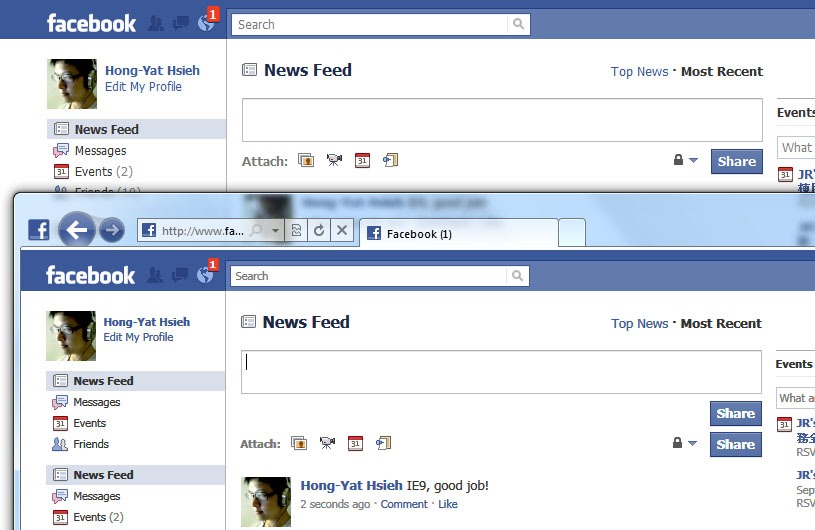
At facebook, see picture bellow. Two “Share” buttons appear at IE9 when writing wall post. Another is Google Chrome which is correct.


2010/08/31
WPF: Get the item in the ListView under the mouse cursor.
How to get the item in the ListView under the mouse cursor. These codes are gethered at CodeProject here.
// A ListView control named lv. Let’s do something in MouseDoubleClick event handler.
private void lv_MouseDoubleClick(object sender, MouseButtonEventArgs e) {
int index = GetCurrentIndex(e.GetPosition);
MyClass instance = lvUsers.Items[index] as MyClass;
// Now you got the original object and then do what you want.
}
delegate Point GetPositionDelegate(IInputElement element);
private int GetCurrentIndex(GetPositionDelegate getPosition) {
int index = -1;
for (int i = 0; I < lv.Items.Count; i++) {
ListViewItem item = GetListViewItem(i);
if (item == null)
continue;
if (IsMouseOverTarget(item, getPosition)) {
index = i;
break;
}
}
return index;
}
private ListViewItem GetListViewItem(int index) {
if (lv.ItemContainerGenerator.Status != GeneratorStatus.ContainersGenerated)
return null;
return lv.ItemContainerGenerator.ContainerFromIndex(index) as ListViewItem;
}
private bool IsMouseOverTarget(Visual target, GetPositionDelegate getPosition) {
Rect bounds = VisualTreeHelper.GetDescendantBounds(target);
Point mousePos = getPosition((IInputElement)target);
return bounds.Contains(mousePos);
}
2010/08/30
WPF: Binding a ListView to DataTable
Suppose you have a DataTable filled with data. And want a ListView to present the data. This code sample can help you.
XAML
<ListView Name="lv">
<ListView.View>
<GridView>
</GridView>
</ListView.View>
</ListView>
<ListView.View>
<GridView>
</GridView>
</ListView.View>
</ListView>
C#
string tableName = “some_table_name”;
DataSet ds = Dao.GetData(tableName); // A class to retrieve dataset.
if (ds.Tables == null || ds.Tables.Count == 0)
return;
GridView gv = (GridView)lv.View;
DataTable dt = ds.Tables[0];
foreach (DataColumn col in dt.Columns) {
GridViewColumn gvCol = new GridViewColumn();
gvCol.Header = col.ColumnName;
gvCol.DisplayMemberBinding = new Binding(col.ColumnName);
gvCol.Width = 100;
gv.Columns.Add(gvCol);
}
lv.ItemsSource = ((IListSource)dt).GetList();
DataSet ds = Dao.GetData(tableName); // A class to retrieve dataset.
if (ds.Tables == null || ds.Tables.Count == 0)
return;
GridView gv = (GridView)lv.View;
DataTable dt = ds.Tables[0];
foreach (DataColumn col in dt.Columns) {
GridViewColumn gvCol = new GridViewColumn();
gvCol.Header = col.ColumnName;
gvCol.DisplayMemberBinding = new Binding(col.ColumnName);
gvCol.Width = 100;
gv.Columns.Add(gvCol);
}
lv.ItemsSource = ((IListSource)dt).GetList();
2010/06/11
Use WCF to upload image data within a class
Here is a workable sample of uploading image data by WCF.
Requirement:
I have a data model includes image. I want to upload it from client to server.
History:
It was a case in tabular model days. I serialize dataset to a xml file and zip the image file together. Then upload the zip file to a FTP server. And server side programs will get the zip file in the ftp folder.
Issues:
When uploading files via FTP, I did not know the transfer result. Some times the zip file was broken, but I won't know until server sent an error report to me. Maybe add a md5 check will be good. But even md5 check solve the issue of the broken file. It still need me to do something manually to make the client upload files again. I want the client know uploading result in the meantime. And client can upload again if there is a problem.
Possible Solution:
First, I considered Web Services. But in the final I turned into WCF. Because it can host a service on any processes without a web server. I am not sure WCF is the best way for me. But it dose help me.
Studies:
I list these articles which help me to achieve the goal.
WCF Streaming: Upload files over HTTP by Kjell-Sverre Jerijærvi (February 07, 2007).
How to: Enable Streaming, MSDN.
XML Serialization in C# - Part II – Images by Prajna Das (March 29, 2007).
"There is an error in XML document (0, 0)." error while XML Deserialization, MSDN Data Developer Center Forum.
My first question is how to upload files with WCF. People will suggest you using “Streamed” transfer mode. But many samples I googled, the service only provide a method to receive Stream. What if I want to pass a class instance? Finally I figured out that serialize my class into stream and transfer to server.
The second question is how to serialize images. The article “XML Serialization in C#” listed above give me a thought that Bitmap is hard to handle. I am lazy and not smart, so I want the code is as simple as possible. Then I remembered a project which I participated around 2005. One program in that project has a function: save image to xml file. Lucky I could find that project beside my hand.
Everything is ready. Let’s look how to implement my solution.
Implement I: XML Serialization
In the first, I want to transfer a image data within a class. The data model is:
public class ImageData {
public string Id { get; set; }
[XmlElementAttribute(DataType = "base64Binary")]
public byte[] ImageContent { get; set; }
}
public string Id { get; set; }
[XmlElementAttribute(DataType = "base64Binary")]
public byte[] ImageContent { get; set; }
}
You may notice that the ImageContent property is byte[]. And I added a attribute above it to tell Serializer how to serialize it. Here is a SerializeHelper class handles serialize and deserialize.
public class SerializeHelper {
public static void Serialize<T>(out Stream stream, T item){
stream = new MemoryStream();
XmlSerializer x = new XmlSerializer(typeof(T));
x.Serialize(stream, item);
stream.Position = 0;
}
public static T Deserialize<T>(Stream stream) {
XmlSerializer x = new XmlSerializer(typeof(T));
T obj = (T)x.Deserialize(stream);
return obj;
}
}
public static void Serialize<T>
stream = new MemoryStream();
XmlSerializer x = new XmlSerializer(typeof(T));
x.Serialize(stream, item);
stream.Position = 0;
}
public static T Deserialize<T>(Stream stream) {
XmlSerializer x = new XmlSerializer(typeof(T));
T obj = (T)x.Deserialize(stream);
return obj;
}
}
The last line of the method, Serialize, is very important. If you did not set the position to 0, you will encounter a exception when deserialize: “There is an error in XML document (0, 0)”. For more information, you can read the article I listed above to learn what happened.
Implement II: WCF service
The service is very simple.
[ServiceContract]
public interface IImageServer {
[OperationContract]
Stream GetStream(string data);
[OperationContract]
bool UploadStream(Stream stream);
}
public interface IImageServer {
[OperationContract]
Stream GetStream(string data);
[OperationContract]
bool UploadStream(Stream stream);
}
Just as the same as MSDN sample. How do I implement it ? See this:
[ServiceBehavior(InstanceContextMode = InstanceContextMode.Single)]
public class PictureServer : IPictureServer {
public System.IO.Stream GetStream(string data) {
try {
ImageData item = new ImageData();
item.Id = "001";
item.ImageContent = File.ReadAllBytes(@"c:\temp\001.tif");
Stream stream = null;
SerializeHelper.Serialize<ImageData>(out stream, item);
return stream;
} catch (Exception ex) {
Console.Write(ex.Message);
return null;
}
}
public bool UploadStream(Stream stream) {
if (stream == null)
return false;
try {
ImageData item = SerializeHelper.Deserialize<ImageData>(stream);
File.WriteAllBytes(@"c:\temp\001_server.tif", item.ImageContent);
} catch (Exception) {
return false;
}
return true;
}
}
public class PictureServer : IPictureServer {
public System.IO.Stream GetStream(string data) {
try {
ImageData item = new ImageData();
item.Id = "001";
item.ImageContent = File.ReadAllBytes(@"c:\temp\001.tif");
Stream stream = null;
SerializeHelper.Serialize<ImageData>(out stream, item);
return stream;
} catch (Exception ex) {
Console.Write(ex.Message);
return null;
}
}
public bool UploadStream(Stream stream) {
if (stream == null)
return false;
try {
ImageData item = SerializeHelper.Deserialize<ImageData>
File.WriteAllBytes(@"c:\temp\001_server.tif", item.ImageContent);
} catch (Exception) {
return false;
}
return true;
}
}
I hardcode the behaviors in GetStream and UploadStream just for testing the mechanism. And then the app.config of the service.
<?xml version="1.0" encoding="utf-8" ?>
<configuration>
<system.serviceModel>
<services>
<service name="StreamService.PictureServer"
behaviorConfiguration="PicutreServerBehavior">
<host>
<baseAddresses>
<add baseAddress="http://localhost:8000/PictureServer"/>
</baseAddresses>
</host>
<endpoint address=""
binding="basicHttpBinding"
bindingConfiguration="StreamedHttp"
contract="SteramService.IPictureServer"/>
<endpoint address="mex"
binding="mexHttpBinding"
contract="IMetadataExchange"/>
</service>
</services>
<bindings>
<basicHttpBinding>
<binding name="StreamedHttp"
transferMode="Streamed"
maxReceivedMessageSize="67108864"/>
</basicHttpBinding>
</bindings>
<behaviors>
<serviceBehaviors>
<behavior name="PicutreServerBehavior">
<serviceMetadata httpGetEnabled="True"/>
</behavior>
</serviceBehaviors>
</behaviors>
</system.serviceModel>
</configuration>
<configuration>
<system.serviceModel>
<services>
<service name="StreamService.PictureServer"
behaviorConfiguration="PicutreServerBehavior">
<host>
<baseAddresses>
<add baseAddress="http://localhost:8000/PictureServer"/>
</baseAddresses>
</host>
<endpoint address=""
binding="basicHttpBinding"
bindingConfiguration="StreamedHttp"
contract="SteramService.IPictureServer"/>
<endpoint address="mex"
binding="mexHttpBinding"
contract="IMetadataExchange"/>
</service>
</services>
<bindings>
<basicHttpBinding>
<binding name="StreamedHttp"
transferMode="Streamed"
maxReceivedMessageSize="67108864"/>
</basicHttpBinding>
</bindings>
<behaviors>
<serviceBehaviors>
<behavior name="PicutreServerBehavior">
<serviceMetadata httpGetEnabled="True"/>
</behavior>
</serviceBehaviors>
</behaviors>
</system.serviceModel>
</configuration>
The most important is the binding element. You need set transferMode to “Streamed” and set maxReceivedMessageSize appropriately. In my case, it is 64mb.
Implement III: Client
Now we can implement a client application to communicate the service. Upload and Get stream. I hardcode some behaviors, too.
class ClientApp {
IPictureServer server;
Stream stream = null;
SerializeHelper.Serialize<ImageData>(out stream, item);
bool success = server.UploadStream(stream);
if (success) {
Console.WriteLine("Upload stream successfully.");
} else {
Console.WriteLine("Failed uploading stream.");
}
Console.WriteLine("Press <enter> to terminate.");
Console.ReadLine();
}
private void GetImageData() {
Stream stream = server.GetStream("");
if (stream == null)
return;
ImageData item = SerializeHelper.Deserialize<ImageData>(stream);
File.WriteAllBytes(@"c:\temp\001_client.tif", item.ImageContent);
}
private void ConnectServiceViaChannelFactory() {
server = CreateServiceProxy<IPictureServer>(
CreateStreamingBinding(),
"http://localhost:8000/PictureServer");
}
private T CreateServiceProxy<T>(Binding binding, string address) {
ChannelFactory<T> factory =
new ChannelFactory<T>(
binding,
new EndpointAddress(address)
);
return factory.CreateChannel();
}
private Binding CreateStreamingBinding() {
//max MessageSize: 64MB
BasicHttpBinding binding = new BasicHttpBinding {
TransferMode = TransferMode.Streamed,
MaxReceivedMessageSize = 67108864
};
return binding;
}
}
IPictureServer server;
internal void Run() {
ConnectServiceViaChannelFactory();
GetImageData();
UploadImageData();
}
private void UploadImageData() {
ImageData item = new ImageData();
item.Id = "001";
item.ImageContent = File.ReadAllBytes(@"c:\temp\001.tif");
Stream stream = null;
SerializeHelper.Serialize<ImageData>(out stream, item);
bool success = server.UploadStream(stream);
if (success) {
Console.WriteLine("Upload stream successfully.");
} else {
Console.WriteLine("Failed uploading stream.");
}
Console.WriteLine("Press <enter> to terminate.");
Console.ReadLine();
}
private void GetImageData() {
Stream stream = server.GetStream("");
if (stream == null)
return;
ImageData item = SerializeHelper.Deserialize<ImageData>(stream);
File.WriteAllBytes(@"c:\temp\001_client.tif", item.ImageContent);
}
private void ConnectServiceViaChannelFactory() {
server = CreateServiceProxy<IPictureServer>(
CreateStreamingBinding(),
"http://localhost:8000/PictureServer");
}
private T CreateServiceProxy<T>(Binding binding, string address) {
ChannelFactory<T> factory =
new ChannelFactory<T>(
binding,
new EndpointAddress(address)
);
return factory.CreateChannel();
}
private Binding CreateStreamingBinding() {
//max MessageSize: 64MB
BasicHttpBinding binding = new BasicHttpBinding {
TransferMode = TransferMode.Streamed,
MaxReceivedMessageSize = 67108864
};
return binding;
}
}
Beware that in CreateStreamingBinding method, we need set MaxReceivedMessageSize, too. After uploaded stream, we can get a result. In real case, if the result is false, we need take some actions. For example, save the item to a queue, and retry while a moment. Because the type of ImageData.ImageContent is byte array, it can be any type of file in the fact.Here is keywords for search engine.
WCF, upload image file, XML, Serialize, Bitmap, Complex type, stream, large data
2009/10/19

2009/08/27
Google docs makes Firefox javascript engine busy.
After opened a document in Google docs, an alert window popup as the screenshot showed.

Firefox version is 3.7a1pre.
2009/07/21
MSDN 雜誌線上文章中英對照功能
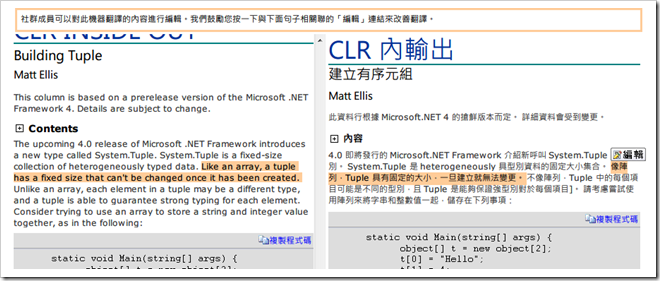
許久沒有看 MSDN 雜誌的線上文章了,赫然發現現在不但有中英對照本版,還可以逐句對映,並且可以編輯中譯內容。由於中文內容一向是繼器翻譯,所以文句上面總是不通順,微軟這招讓社群成員可以編輯中譯本的功能,也頗不錯,集合大家的力量讓中文化資源越來越豐富。雖然是機器翻譯,有些時候還是可以省去翻字典的時間。
Subscribe to:
Posts (Atom)