Showing posts with label C#. Show all posts

2018/01/18

使用 using IDisposable 物件包裝 Stopwatch 並可自訂 log 處理動作

受到黑暗執行序一篇文章《野人獻曝 - 極簡風格 .NET Stopwatch 計時法》的啟發,我延伸了一點小小的功能,讓寫 log 的動作更有彈性一點。原文使用 IDisposable 物件包裝 Stopwatch,在程式碼中以 using 方式使用,在大括號內自動計時,並且在結束的時候寫出 log 內容。在實作 DIspose() 時示範加入 Console.WriteLine 寫出 log 資訊。但如果使用的情境,不一定是要在 Console 或 log 檔案輸出資訊的話呢? 可能是在視窗畫面上顯示資訊。為了達成這樣的目的,我作了小小的修改,在建構子傳入 Action<Stopwatch> 委派,日後就可以依需求自訂 log 處理動作。

/// <summary>
/// 以 using 方式包裝 Stopwatch 提供監看程式耗時的功能
/// </summary>

public class StopwatchScope : IDisposable {         
    private readonly Stopwatch stopwatch = new Stopwatch();
    private Action<Stopwatch> proc;         

    /// <summary>           
    /// 是否停用           
    /// </summary>
         
    public static bool Disabled { get; set; } = false;

    /// <summary>
    /// 建構式
    /// </summary>

    /// <param name="stopwatchProcess">StopwatchScope dispose 時候要執行的動作</param>
    public StopwatchScope(Action<Stopwatch> stopwatchProcess) {
        if (Disabled) return;
        proc = stopwatchProcess;
        stopwatch.Start();
    }
 
    /// <inheritdoc />
    public void Dispose() {
        if (Disabled) return;
        stopwatch.Stop();
        if (proc != null) proc.Invoke(stopwatch);
    }
}

使用起來大概像這樣,假設我們有個 Logger 物件專門寫 log 檔案,在 using 建立 StopwatchScope 時,可以傳入寫 log 的方法。

using (StopwatchScope sw = new StopwatchScope(w => {Logger.Write("do something 花費秒數: " + w.Elapsed.TotalSeconds.ToString());}) {
    // do something
}

呼叫 Logger 寫檔案,也可以替換成更新 Windows UI 某個 label 的內容或是 status bar 的資訊,如此就可以自訂 log 處理動作。

2015/04/11

Error message “The definition of the report '' is invalid” when opening a report in Windows Forms ReportViewer.


In the brief

I developed a Windows Forms application. There is a ReportViewer control to show some reports. The reports showed up well on my develop machine, but got error message on deployment machine. I finally found that the deployment machine was lack of some assemblies which ReportViewer needs.

Error Message Log

[Error] Message = An error occurred during local report processing. 
   at Microsoft.Reporting.WinForms.LocalReport.EnsureExecutionSession() 
   at Microsoft.Reporting.WinForms.LocalReport.SetParameters(IEnumerable`1 parameters)


[Error] Message = The definition of the report '' is invalid
   at Microsoft.Reporting.ReportCompiler.CompileReport(ICatalogItemContext context, Byte[] reportDefinition, Boolean generateExpressionHostWithRefusedPermissions, ControlSnapshot& snapshot) 
   at Microsoft.Reporting.LocalService.GetCompiledReport(PreviewItemContext itemContext, Boolean rebuild, ControlSnapshot& snapshot) 
   at Microsoft.Reporting.LocalService.CompileReport() 
   at Microsoft.Reporting.LocalService.Microsoft.Reporting.ILocalProcessingHost.CompileReport() 
   at Microsoft.Reporting.WinForms.LocalReport.EnsureExecutionSession(), Source = Microsoft.ReportViewer.Common, Method = CompileReport


ReporViewer assemblies

In my case, my project is reference Microsoft.ReportViewer.WinForms.dll version 11.0.0.0. All assemblies you need to copy to deployment machine are:

  • Microsoft.ReportViewer.Common.dll
  • Microsoft.ReportViewer.ProcessingObjectModel.dll
  • Microsoft.ReportViewer.WinForms.dll
  • Microsoft.SqlServer.Types.dll

You can find them in c:\windows\assembly\GAC_MSIL\ . Every assembly has its own folder and subfolder of different version.

How I find out the solution

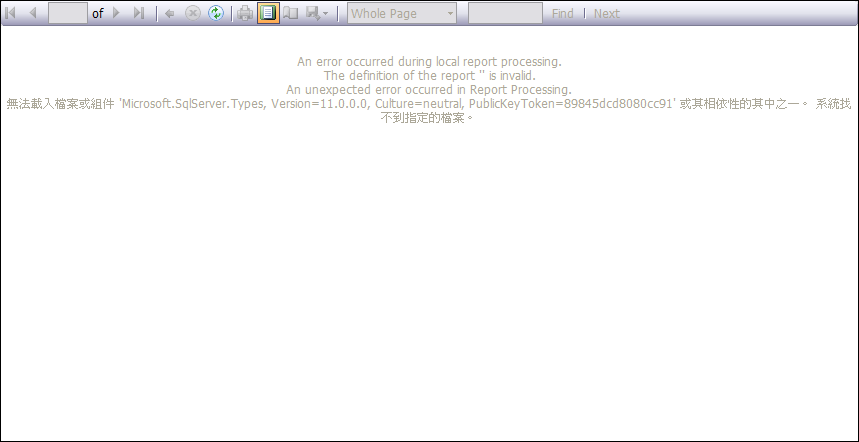
I create an empty report. No parameters, no data source. And open it on deployment machine. Then, I saw the message on ReportViewer as showed below. The message says it needs other assembly to process report.

reportviewer

After I copied Microsoft.SqlServer.Types.dll to my application folder on the deployment machine. It showed next message that it want Microsoft.ReportViewer.ProcessingObjectModel.dll. And then copy it. Finally an empty report showed up. So I change my code to open the normal report which it was be. It works! All reports show up well on deployment machine now.

Final thoughts

Usually I only copy Microsoft.ReportViewer.Common.dll and Microsoft.ReportViewer.WinForms.dll to deployment machine when using ReportViewer version 10. This time I changed my ReportViewer to version 11 and got this error message “The definition of the report '' is invalid”. I googled everywhere but no useful solution for my case. Although someone mentioned it was ReportViewer version issue. But I still don’t know what’s the key point about version issue or what assembly missed in my application. Well, if you has the same problem, report works well on develop machine but not on deployment machine, try this solution.

2012/07/04

[WPF] Asynchronously Loading Image From Internet using C# 5.0 (.NET Framework 4.5)


Requirement

I want to create a WPF window which displays many images from internet. I put many <Image> element on the window and set the Source of every <Image>. When I run the application, the UI is locked till all images loaded completely. This, UI locked, is not what I want. Is there any way to load image asynchronously?

Old Implement by ThreadPool

Then, an idea come to my head: make a user control and load image in another thread. My first implement use ThreadPool, Dispather to achieve this goal. But that is not the point of this article.

C# 5.0 and .NET Framework 4.5 do more for you

Recently I read that C# 5.0 introduced new keyword async and await. It make asynchronous programming simple. So I want to take a try. And I just want to share with you what I found.

The markup of <AsyncImage>

I create a user control named AsyncImage and put an Image element named “img” inside. The xaml is very simple.

<UserControl ...>
  <Grid>
    <Image name="img" />
  </Grid>
</UserControl>

As it is a control that can be put on the UI. I want to set the image source string when using it. Therefor I add a dependency property into the code.

public string ImageSource {
    get { return (string)GetValue(ImageSourceProperty); }
    set { SetValue(ImageSourceProperty, value); }
}

public static readonly DependencyProperty ImageSourceProperty =
    DependencyProperty.Register("ImageSource", typeof(string), typeof(AsyncImage), new UIPropertyMetadata("", OnImageSourceChanged));

When ImageSouce is set, it will call OnImageSourceChanged. It looks like this.

private static void OnImageSourceChanged(DependencyObject d, DependencyPropertyChangedEventArgs e) {
    AsyncImage v = d as AsyncImage;
    if (v == null)
        return;

    v.ShowImageAsync(e.NewValue.ToString());
}

The key word async And await

Let’s see the rest codes.

protected async void ShowImageAsync(string source) {
    img.Source = await LoadImageSourceAsync(source);
}

private async Task<ImageSource> LoadImageSourceAsync(string address) {
    ImageSource imgSource = null;

    try {
        MemoryStream ms = new MemoryStream(await new WebClient().DownloadDataTaskAsync(new Uri(address)));
        ImageSourceConverter imageSourceConverter = new ImageSourceConverter();
        imgSource = (ImageSource)imageSourceConverter.ConvertFrom(ms);

    } catch (Exception ex) {
        Debug.WriteLine(ex.Message);
        Debug.WriteLine(ex.StackTrace);
    }

    return imgSource;
}

ShowImageAsync is a void method modified by async keyword. Because there is a await call in the method block. 

LoadImageSource is another asynchronous method. It downloads the image by await call to WebClent.DownloadDataTaskAsync. WebClient class in .Net Framework 4.5 adds several asynchronous method which adding the word, “Async”, behind the original method name. The new method of the WebClient is the key point. It can do works in the background and return value when works completed. When I set img.Source by await call to LoadImageSourceAsync, it will do its works in the background, too.

I put AsyncImage in a test window. When downloading image, the window can still drag, move, change size. Only one thing. UI will still be locked in a very short time when Image.ImageSource is setting.

Responsive UI is easy

With async and await, asynchronous method call is like normal method. It reduced the cross thread call exceptions. A high performance and responsive UI is more and more easy.

2010/08/31

WPF: Get the item in the ListView under the mouse cursor.

How to get the item in the ListView under the mouse cursor. These codes are gethered at CodeProject here.

// A ListView control named lv. Let’s do something in MouseDoubleClick event handler.
private void
lv_MouseDoubleClick(object sender, MouseButtonEventArgs e) {
    int index = GetCurrentIndex(e.GetPosition); 
    MyClass instance = lvUsers.Items[index] as MyClass
    // Now you got the original object and then do what you want. 
}
delegate Point GetPositionDelegate(IInputElement element);
private int GetCurrentIndex(GetPositionDelegate getPosition) {
    int index = -1;
    for (int i = 0; I < lv.Items.Count; i++) {
        ListViewItem item = GetListViewItem(i);
        if (item == null)
            continue;
        if (IsMouseOverTarget(item, getPosition)) {
            index = i;
            break;
        }
    }
    return index;
}
private ListViewItem GetListViewItem(int index) {
    if (lv.ItemContainerGenerator.Status != GeneratorStatus.ContainersGenerated)
    return null;
    return lv.ItemContainerGenerator.ContainerFromIndex(index) as ListViewItem;
}
private bool IsMouseOverTarget(Visual target, GetPositionDelegate getPosition) {
    Rect bounds = VisualTreeHelper.GetDescendantBounds(target);
    Point mousePos = getPosition((IInputElement)target); 
    return bounds.Contains(mousePos);
}

2010/08/30

WPF: Binding a ListView to DataTable

Suppose you have a DataTable filled with data. And want a ListView to present the data. This code sample can help you.

XAML

<ListView Name="lv">
    <ListView.View>
        <GridView>
        </GridView>
    </ListView.View>
</ListView>

C#

string tableName = “some_table_name”;
DataSet ds = Dao.GetData(tableName);  // A class to retrieve dataset.
if (ds.Tables == null || ds.Tables.Count == 0)
    return;

GridView gv = (GridView)lv.View;

DataTable dt = ds.Tables[0];
foreach (DataColumn col in dt.Columns) {
    GridViewColumn gvCol = new GridViewColumn();
    gvCol.Header = col.ColumnName;
    gvCol.DisplayMemberBinding = new Binding(col.ColumnName);
    gvCol.Width = 100;
    gv.Columns.Add(gvCol);
}

lv.ItemsSource = ((IListSource)dt).GetList();